Webinar automation: from form fill to calendar invite to CRM
Four webinar automation recipes: form fill to calendar invite, RSVP to registration, attendance to CRM, and AI assistants, using webhooks, API and MCP.
 Bhaskar Dev19 min read
Most of the work between a registration and a seat in the room can run by itself, and this guide gives you four workflows to set it up and optimize your webinar funnel.
Webinars are one of the most effective lead generation strategies in B2B, and one of the easiest to set up. Yet most webinar and marketing teams struggle to make the funnel work. They follow the traditional approach: exports, uploads and lists moved by hand.
We have run thousands of webinars for 250+ B2B and enterprise brands, and Tantra is that playbook turned into software. The data in this guide is backed by our internal metrics from those webinars and by other industry sources, with a clear label on which is which.
This is a practical deep dive into automating a webinar funnel, based on our own experience and industry benchmarks.
Look at the traditional version first. Between someone filling in your registration form and someone sitting in your webinar, there is a surprising amount of copy-paste. A registrant lands in a spreadsheet. Someone exports it. Someone else uploads it to the email tool, adds the calendar invite by hand, and later moves the people who showed up into the CRM. Every one of those hand-offs is a place where a registrant can quietly fall out of the process.
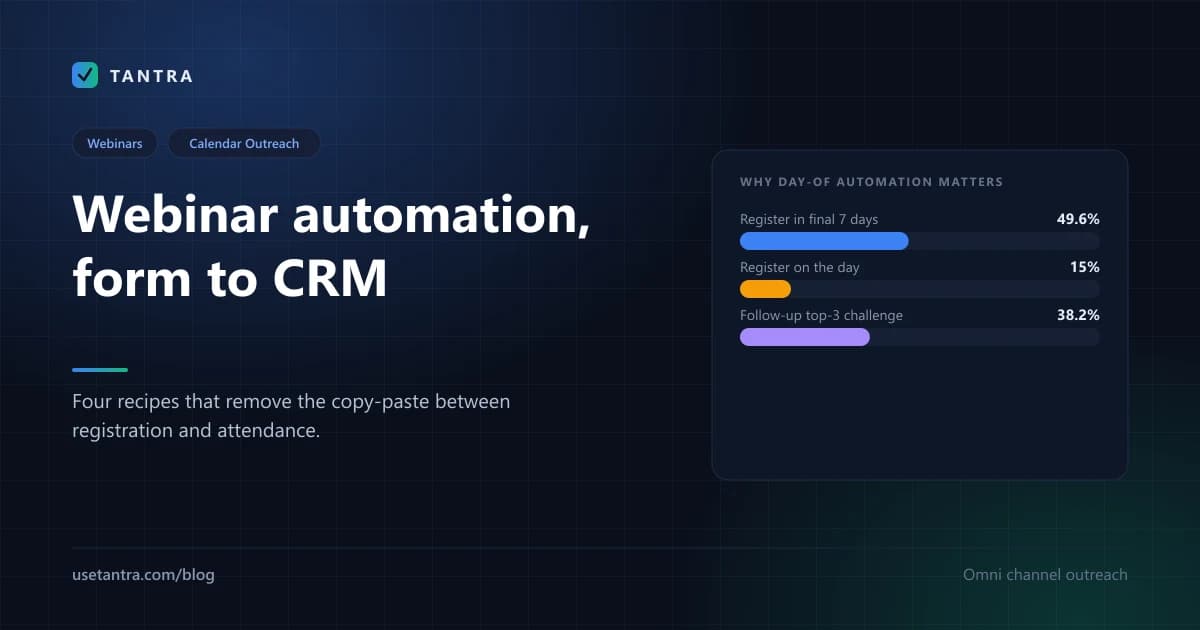
Timing makes it worse. Livestorm's 2026 webinar benchmark (vendor data from its own platform) reports that 49.6% of registrations arrive in the final 7 days and 15% on the day itself. A weekly export-and-upload routine misses those people by design. The same report finds that follow-up after the event is a top-three challenge for 38.2% of the practitioners it surveyed, which is what you would expect when follow-up depends on someone remembering to do it.
The useful place to start is with the handoffs your team repeats for every webinar. We will look at how the systems connect and walk through four workflows you can build around them. If you are still writing the messages, webinar calendar invites vs. add to calendar links covers the invitation itself, and the webinar reminder sequence guide helps you decide what to send and when.
Automation matters because of what we see in our own campaigns: for a cold-invited audience, attendance drops by about 80% when no reminder emails go out, and follow-up after the webinar shows higher conversion. Both depend on steps that are easy to miss by hand. The webinar marketing strategy guide covers the plan these workflows serve.
The short answer
Start with the steps your team handles the same way each time. A form submission can add a contact to a campaign without a CSV export. With registration enabled, a positive calendar RSVP can register them on the webinar platform. After the session, attendance records can help you build CRM segments. Keep a person involved when deciding how to answer a question or follow up with someone who showed real interest.
In Tantra, the connectors are a REST API with an API key for getting contacts in, outbound webhooks for getting events out, an MCP server for AI assistants, and Zoom and WebinarGeek syncs for attendance. n8n, Zapier and Make work as generic webhook and HTTP recipes rather than native connectors. The webinar itself runs on your webinar platform.
What should you automate, and what should you leave alone?
A useful test is whether a step is mechanical (the same input always gets the same output) or a judgement call (it depends on who the person is and what they said).
| Step | Automate? | Why |
|---|---|---|
| Adding a registrant to the invite campaign | Yes | Mechanical, time sensitive, and late registrants are common |
| Sending the calendar invite and reminders | Yes | Timing matters more than wording after the first draft |
| Registering a "yes" RSVP on the webinar platform | Yes, opt-in | Removes a manual step, but the person receives the platform's own confirmation email |
| Copying attendance back to the CRM | Mostly | The sync is mechanical; the segments it produces need a human to choose the next step |
| Deciding who gets a sales call | No (or assisted) | High-intent signals deserve a person, quickly |
Do not automate consent. Tantra applies its suppression, validation and sending-limit checks to every contact however it arrives, so your workflow should not try to route around them.
Do not automate the sale. Speed should get a human to the warm lead sooner, not remove the human. The attendance playbook makes the same argument for the 24 to 72 hour hand-off window, and the no-show follow-up post covers what to say once the segments exist.
What does the architecture look like?
Most setups involve four systems. Giving each one a clear role makes it easier to see where a record should live and which handoff you need to connect next.
- The form or landing page captures the registrant. It is the trigger.
- The outreach tool (Tantra) sends the invitation or sequence step, records the RSVP or reply, and emits events.
- The webinar platform (Zoom or WebinarGeek) hosts the session, issues the join link and records who attended.
- The CRM holds the commercial record: stage, owner, deal.
Between them sits a glue layer: your own code, or a workflow tool such as n8n, Zapier or Make. The B2B webinar funnel shows where these recipes sit in the wider funnel.
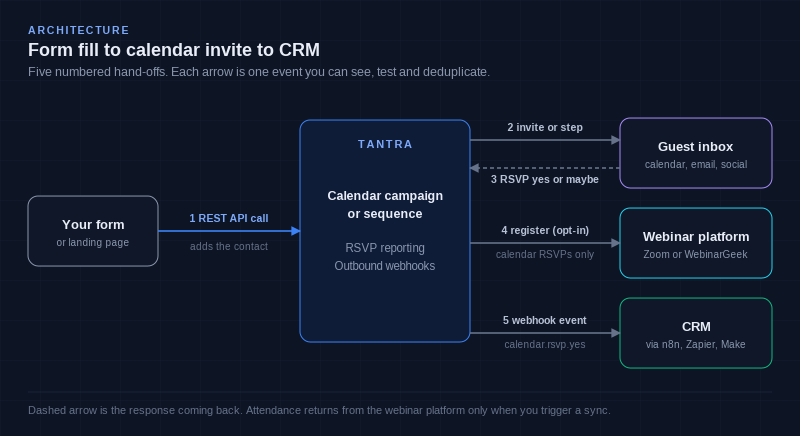
Follow the five handoffs in the diagram one at a time. For each connection, check which system sends the information and which one receives it. Getting that direction clear will help you avoid setting up an outbound webhook when the workflow needs an incoming API call.
- Into Tantra (arrow 1): a REST API call adds contacts to a campaign. The REST API uses an account-level API key sent in the
X-API-Keyheader, and Tantra's own developer platform page describes the integration surfaces together. Tantra's Prospect Intake page also describes inbound webhooks for adding prospects to a campaign; check it and the in-app webhooks page for what is available on your plan before relying on it. - Out of Tantra (arrow 5): outbound webhooks. Tantra makes an HTTPS POST with JSON to a URL you register when something happens, such as a guest changing an RSVP or a prospect replying.
- Between Tantra and the webinar platform (arrow 4 and the attendance sync): registration is automatic only for opted-in calendar campaigns, and attendance comes back when you trigger a sync.
That last point matters. Webhooks cover what Tantra sees: RSVPs, replies, clicks, bounces, unsubscribes and LinkedIn accepts. They do not announce attendance, because that lives in Zoom or WebinarGeek and Tantra refreshes it only when you ask.
Which four recipes cover most of the work?
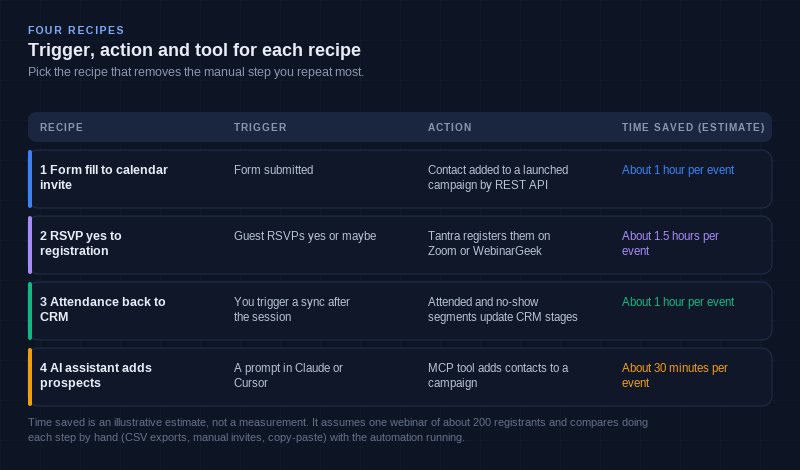
The time figures are estimates for a hypothetical webinar with about 200 registrants. They are not measured savings or Tantra customer data. Use them to think about which repeated task takes the most time in your setup, then measure the difference once your workflow is running.
| Recipe | Trigger | Action | Tool | Time saved (estimate) |
|---|---|---|---|---|
| 1. Form fill to calendar invite | Form submitted | Contact added to a launched campaign | REST API from your form handler, n8n, Zapier or Make | About 1 hour per event |
| 2. RSVP yes to registration | Guest RSVPs yes or maybe | Registered on Zoom or WebinarGeek | Tantra opt-in setting | About 1.5 hours per event |
| 3. Attendance back to CRM | Session ends, you trigger a sync | Attended and no-show segments update CRM | Zoom or WebinarGeek sync, webhook consumer, CRM | About 1 hour per event |
| 4. AI assistant adds prospects | A prompt | Contacts added to a campaign | MCP server or REST API | About 30 minutes per event |
Work through the recipes in the order that matches your setup. If late registrations are the immediate problem, start with the form-to-invitation workflow; if follow-up is falling behind, look closely at the attendance-to-CRM steps.
Recipe 1: how do you turn a form fill into a calendar invite?
Goal: a person registers on your page and an invitation lands on their calendar without anyone exporting anything.
Setup you do once
- Create and launch the calendar campaign. Tantra's calendar campaigns send a real Google Calendar invitation from your connected Google Workspace senders, and the step-by-step help article walks through the wizard.
- Create an API key on the API Keys page. The full key is shown once, so store it in your automation tool's credential store. Keys are account-level, so give each integration its own (API keys help).
- Note the campaign's id.
The workflow
- Trigger: your form tool (or n8n, Zapier or Make watching it) fires when someone submits.
- Action: an HTTP request to the Tantra API adds the person to the campaign. Tantra's assistant tooling documents the operation as adding up to 1,000 contacts to a campaign in one call, with a per-contact outcome in the response.
- Result: Tantra sends the invitation as sender capacity allows.
Three behaviours of that call are worth knowing before you build on it, all taken from the documented behaviour of Tantra's add-contacts operation:
- Repeat calls are idempotent. If your form tool retries after a timeout, the same person is not invited twice.
- Suppressed addresses are skipped, and the response says so per contact. Log those outcomes rather than treating a 200 as "everyone was invited".
- The campaign has to be launched and the event still in the future for calendar campaigns. A person who registers after the event has started is not a candidate for an invite, so decide what your form says on the day.
Invitations go out as sender capacity allows, so a burst of registrations is paced against each sender's daily limit. Those limits are covered in how calendar invitations are batched and sent.
If you would rather register people into a multichannel sequence than a calendar campaign, the same idea works against the sequence campaign: on an active sequence, an added contact is enrolled at once and step one goes out. That is useful for a confirmation message plus LinkedIn or WhatsApp reminders, as long as the contact has the identity each step needs.
Recipe 2: how does an RSVP yes become a webinar registration?
Goal: when a prospect accepts the calendar invitation, they are registered on the webinar so the platform sends the join link.
You can set up this registration step within the calendar campaign itself. Once you have connected the webinar provider and enabled the option, you do not need a separate workflow tool to pass the positive RSVP across.
Setup you do once
- Connect Zoom with a Server-to-Server OAuth app, or connect WebinarGeek with an API key. The Zoom setup guide lists the seven scopes to add; the WebinarGeek guide is shorter. Zoom needs a Pro or higher plan with the Webinars add-on.
- Sync your webinars, then sync the registrants for the one you are promoting.
- In step 1 of the calendar campaign wizard, link the webinar and switch on Register contacts who RSVP yes or maybe.
What happens at run time
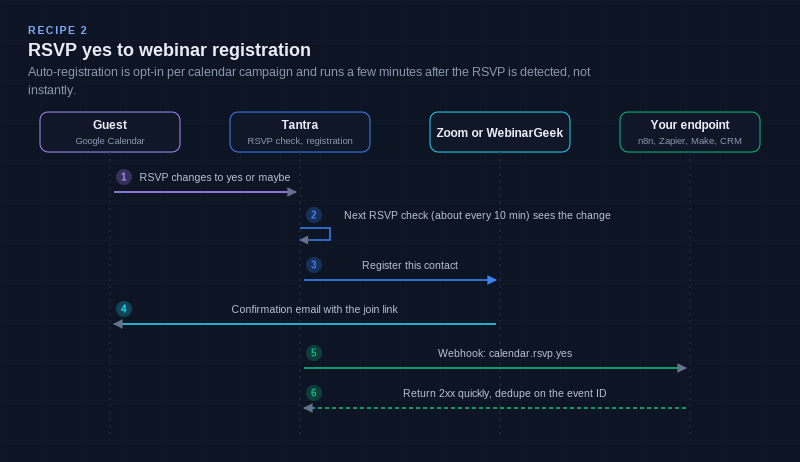
- The guest changes their RSVP to yes or maybe.
- Tantra checks RSVPs on a cycle of roughly every 10 minutes, so the change shows up with a short delay.
- Tantra registers the contact on the linked webinar. This runs a few minutes after the RSVP is detected, not instantly.
- Zoom or WebinarGeek sends its own confirmation email with the join link. The contact will know they were registered, because the platform tells them.
- If you have subscribed a webhook to calendar RSVPs, it fires on the same change, which is where recipe 3 begins.
Boundaries to remember:
- It is opt-in per campaign. Nothing registers anyone unless you turn it on.
- Only positive calendar RSVPs register people. A reply to an email or a click on a link does not. A sequence that links to a webinar provides attribution only, not registration.
- You can see failures. The campaign page shows how many were registered and how many could not be, and the usual cause of failures is a missing registrant scope or a webinar that has registration turned off.
Registering on a calendar "Yes" is a stronger signal than a form fill from a cold list, and the attribution post explains why that matters when you ask which outreach produced which attendee.
Recipe 3: how does attendance get back into the CRM?
Goal: after the session, attended and no-show contacts carry different CRM stages, so nobody gets the wrong follow-up.
Plan an explicit refresh step for this workflow. Tantra sends webhook events for RSVPs and replies, while attendance needs to be fetched from Zoom or WebinarGeek. That refresh runs when you trigger it, rather than in the background. Someone on the team, or a script you configure, needs to start it before you build the CRM segments.
The workflow
- During the campaign, subscribe a webhook endpoint to the calendar RSVP events (yes, no, maybe) and any reply events you care about. A workflow tool receives each event and updates the CRM contact: RSVP status, campaign name, webinar date. At this stage you already have three groups, namely those who said yes, those who said no, and those who never answered.
- After the session, trigger the sync. In the app, that means syncing the webinar's registrants from the Zoom or WebinarGeek connector page. Assistants connected over MCP can do the same through the webinar tools, which cover listing webinars, fetching a webinar report, and syncing registrants.
- Read the result. The Registrants tab shows who attended, with watch time where the provider reported it, and can be exported as CSV. The Reports page filtered to the webinar shows attendees and Attributed Attendees, meaning attendees Tantra matched to people you invited.
- Push segments to the CRM. Import or sync the attended list and the no-show list to your CRM and set stages accordingly. Tantra's own contact stages (new, contacted, engaged, replied, positive, negative, meeting booked, converted, lost, unsubscribed) can carry the status inside Tantra if the CRM sync is not worth building yet.
- Hand off. Attendees who asked a question or replied get a person. No-shows get a recap and a replay, as the no-show follow-up guide describes.
Two caveats on attendance data
- Replay attendance is not synced, because Zoom identifies recording viewers only if they were signed in or passed a registration gate.
- Attributed Attendees counts only attendees whose email matches someone you contacted. An attendee who registered with an address you never invited stays unattributed, which beats guessing.
If your team needs attendance refreshed at a fixed time after each session, assign that step explicitly. You can set a reminder for the person responsible or configure a scheduled job outside Tantra. Check that the refresh completed before anyone uses the attendance numbers to send follow-up or update the CRM.
Recipe 4: how can an AI assistant add prospects?
Goal: instead of building a workflow, ask an assistant to find prospects and put them in the right campaign.
Tantra provides an MCP server (Model Context Protocol) that lets assistants such as Claude, Claude Code and Cursor call Tantra through tools. You run the server yourself, on your own machine for one person or on your own server for a team. Tantra provides the source; it does not host an endpoint for you.
Setup
- Create a dedicated API key for the assistant so you can revoke it without touching other integrations.
- Build the server, register it with your client, and confirm the connection by asking the assistant to run its
whoamitool. The MCP server help article has the exact commands for Claude Code, Claude Desktop and Cursor.
What the assistant can then do for a webinar
- List campaigns and webinars, and read RSVP counts and progress.
- Add contacts to a calendar or sequence campaign.
- Read inbox replies, fetch webinar reports and trigger webinar syncs.
A prompt such as "add these twelve people to the October webinar campaign, then tell me how many were skipped as suppressed" maps directly to the add-contacts tools described in recipe 1.
Guardrails worth keeping
- Tools that send or delete are marked so the assistant asks for confirmation in clients that support it. Keep it that way. Adding contacts to a live campaign sends real invitations that cannot be recalled.
- A read-only mode exists for the server. Use it when the assistant's job is summarising replies, because text from prospects is information, not instructions.
- Connecting social accounts, saving Zoom or WebinarGeek credentials and managing API keys stay in the dashboard on purpose.
An assistant can be convenient when you have a small list to add occasionally and want to check the results in the same conversation. For a public registration form with a steady flow of submissions, use recipe 1 so the workflow keeps running without someone needing to open a chat each time.
How do you test automation, and what fails first?
Before opening registration, walk through the cases below with a few test contacts. A successful submission is only part of the check: you also want to know what happens on a retry, a declined RSVP or a contact who should be skipped.
| Failure mode | What it looks like | How to handle it |
|---|---|---|
| Duplicate deliveries | The same CRM task is created twice | Webhook delivery is at-least-once. Deduplicate on the X-Tantra-Event-Id header |
| Slow consumer | Events retry or dead-letter | Return a 2xx within 15 seconds and do slower work after responding |
| Wrong event routed | A "no" RSVP creates a hot lead | Route on the X-Tantra-Event header, for example calendar.rsvp.yes versus calendar.rsvp.no |
| Time zone drift | The CRM shows the webinar at the wrong hour | Read the event's own time zone from the payload instead of assuming yours |
| Late registrant | A person signs up after the event started | Decide in advance: send the replay link, not an invite |
| Suppressed contact | The add call skips someone | Log per-contact outcomes and tell your team, rather than counting "submitted" as "invited" |
| Missing scope | Registration silently fails | Check the registered and failed counts on the campaign page after the first RSVP |
Use the test payload. On the Webhooks page, Send test payload posts a webhook.test event that includes every supported field path and carries an X-Webhook-Test: true header. It is deliberately a superset, so your workflow tool can map every field, but real deliveries contain exactly one event type and only the fields relevant to it. Make your workflow ignore the test header in production routes.
Read the real payload once. The documented envelope carries the event id and type, timestamp, channel, guest, campaign and, when linked, the webinar identifier. Calendar events add the start, end and time zone. Build your mapping from a delivery you have received.
Retries differ by channel. Calendar RSVP deliveries make up to three attempts with short exponential delays. Email and social events are retried on an immediate, 1-minute, 5-minute and 30-minute schedule before dead-lettering. One failing endpoint does not block another.
Consent and honesty. Registering someone on Zoom triggers Zoom's own confirmation email, so people will see a message from the webinar platform. Turn auto-registration on only when that is the experience you want, and keep your invitation copy clear about what the person agreed to. For how to word the first touch, see cold webinar invitations.
Where Tantra fits
Tantra can act as your webinar marketing platform, and these are the parts of the workflow it connects:
- Sends the calendar invitation or sequence step across Google Calendar, email, LinkedIn and WhatsApp, and records RSVPs and replies. See calendar campaigns and sequences.
- Hyperpersonalizes the outreach. AI personalization writes each email and calendar invitation description from what it reads about the prospect, and LinkedIn and WhatsApp steps are personalized with merge tags and spintax. In our own campaigns, cold invitations sent this way typically draw a response rate of about 30%.
- Receives contacts by REST API with an account-level, revocable API key, and by an MCP server you run yourself. The developer platform page lists the surfaces, and Prospect Intake covers the inbound side.
- Emits outbound webhooks for calendar RSVPs (yes, no, maybe), email replies, bounces, clicks and unsubscribes, LinkedIn accepts and replies, and WhatsApp replies. Delivery is at-least-once with an event ID, and the webhook trigger reference lists every event.
- Registers opted-in Yes or Maybe RSVPs on Zoom or WebinarGeek and reports attributed attendance. See the webinars use case.
- Works with n8n, Zapier and Make as generic webhook consumers. The n8n, Zapier and Make pages describe what that looks like, and Zoom and WebinarGeek have their own pages.
How the connections work.
- You run the session on Zoom or WebinarGeek, and Tantra runs the outreach around it.
- n8n, Zapier and Make connect through webhooks and HTTP requests, so you can map any field to your own stack.
- Calendar RSVPs and replies fire webhook events as Tantra detects them.
- Attendance syncs from Zoom or WebinarGeek when you trigger it, then feeds your CRM segments.
- The time savings above are illustrative estimates. For attendance benchmarks and their definitions, see the webinar statistics page.
Frequently asked questions
Can I use Zapier, n8n or Make with Tantra?
Yes, as generic webhook and HTTP recipes rather than native apps. Register the workflow tool's incoming webhook URL on Tantra's Webhooks page, choose only the events that workflow handles, route on the X-Tantra-Event header and deduplicate on X-Tantra-Event-Id. To send contacts the other way, use the tool's HTTP request step against the Tantra API with your API key.
Which webhook events does Tantra send?
Calendar RSVP yes, no and maybe; email replied, bounced, clicked and unsubscribed; LinkedIn connection accepted and message replied; and WhatsApp message replied. Social events require the channel to be active on your plan, and reply events fire only for conversations linked to a Tantra sequence.
Does Tantra register people on Zoom automatically?
Only for calendar campaigns where you have switched on registration for yes or maybe RSVPs. It is opt-in per campaign, runs a few minutes after the RSVP is detected, and the person receives the platform's own confirmation email. Sequences link to a webinar for attribution only and do not register anyone.
How do I get attendance into my CRM?
Trigger a Zoom or WebinarGeek sync after the session, then export the attended and no-show lists or read the webinar report, and push the segments to the CRM. There is no attendance webhook and syncs do not run on their own.
Is it safe to give an AI assistant access to my campaigns?
Give the assistant access that matches the job you want it to do. Use a dedicated key, choose read-only mode for reporting, and keep confirmation prompts enabled for actions that send messages. Because keys are account-level, store them securely and treat them with the same care as a password.
Key takeaways
- Automate hand-offs, not judgement. Mechanical steps get workflows. Replies and high-intent leads get people.
- Know the direction of each integration. REST API and MCP bring contacts in; webhooks send events out.
- Recipe 1: a form fill adds the contact to a launched campaign through the API. Calls are idempotent and suppressed addresses are skipped.
- Recipe 2: opt-in RSVP registration needs no glue, runs a few minutes after the RSVP, and triggers the platform's own confirmation email.
- Recipe 3: attendance returns only when you trigger a sync. There is no attendance webhook, so design for that.
- Recipe 4: an MCP server you run yourself lets an assistant add prospects. Keep confirmations on and use read-only mode for reading.
- Test with real deliveries. Deduplicate on the event ID, return a 2xx quickly, and read the time zone from the payload.
- Treat time savings as estimates. The numbers here are illustrative, not measured.
- Late registrations justify the effort. 49.6% arrive in the final 7 days and 15% on the day, per Livestorm's vendor data.
- Our verdict: focus on marketing, outreach and reminders, and attendance follows. The post-webinar email turns interest into action, so automate the hand-offs that keep both running.
Sources
- Livestorm, webinar best practices and 2026 benchmark report (vendor data from its own platform): share of registrations in the final 7 days (49.6%) and on the day (15%), and follow-up as a top-three challenge for 38.2% of practitioners. livestorm.co/blog/webinar-best-practices
- Tantra help centre, webhook event triggers and outbound webhook delivery: event names, headers, retry schedule and the 15 second response limit. Webhook event triggers, Receive outbound webhooks
- Tantra help centre, MCP server and API keys: server setup, available tools, read-only mode and account-level keys. MCP server, API keys
- Tantra help centre, Zoom and WebinarGeek integrations and RSVP tracking: sync behaviour, opt-in registration and reporting. Zoom, WebinarGeek, Track RSVPs
- Tantra MCP server tool descriptions for adding contacts (up to 1,000 per call, idempotent repeats, per-contact outcomes).
- Tantra campaign experience: the drop of about 80% in attendance without reminder emails for a cold-invited audience, the higher conversion with post-webinar follow-up, and the response rate of about 30% on hyperpersonalized cold invitations. Observations from our own webinar outreach for 250+ brands, not a published study.
The time-saved figures are illustrative estimates for a hypothetical 200-registrant webinar, not customer data or an industry benchmark.
About the author

Bhaskar Dev
Co-founder, Tantra · Bengaluru, India
Bhaskar Dev is a serial entrepreneur, engineer-turned-marketer, and Co-founder of Tantra. With over a decade of experience in B2B technology marketing and growth, he specialises in building AI-powered marketing systems, scaling SaaS businesses, and turning complex technologies into market-ready ventures. His work spans deep-tech, IoT, MarTech, and AI-driven automation.
Connect with Bhaskar on LinkedIn.