
Add and verify your senders
Paste the mailboxes you want to send from and verify them against your uploaded service accounts using domain-wide delegation.
beginner4 min readUpdated
Open in Tantra
These open the app in a new tab. You may be asked to sign in.
Overview#
A sender is a mailbox Tantra sends from, such as [email protected]. Verifying a sender confirms that one of your uploaded service accounts can actually impersonate that mailbox. You add senders on the Accounts page by pasting their email addresses.
Before you start#
- At least one service account uploaded. See Upload your service account to Tantra.
- Domain-wide delegation granted for the mailboxes you will add. See Grant domain-wide delegation and scopes.
Step-by-step#
- In the left sidebar, click Accounts.
- In the Verify and Add Accounts box, paste the mailbox addresses. You can separate them by new lines, commas, or spaces. Tantra shows a running Parsed emails count.
- Click Verify & Add. Tantra checks each mailbox against your uploaded service accounts.
- When it finishes, each sender appears in the list with a connection badge.
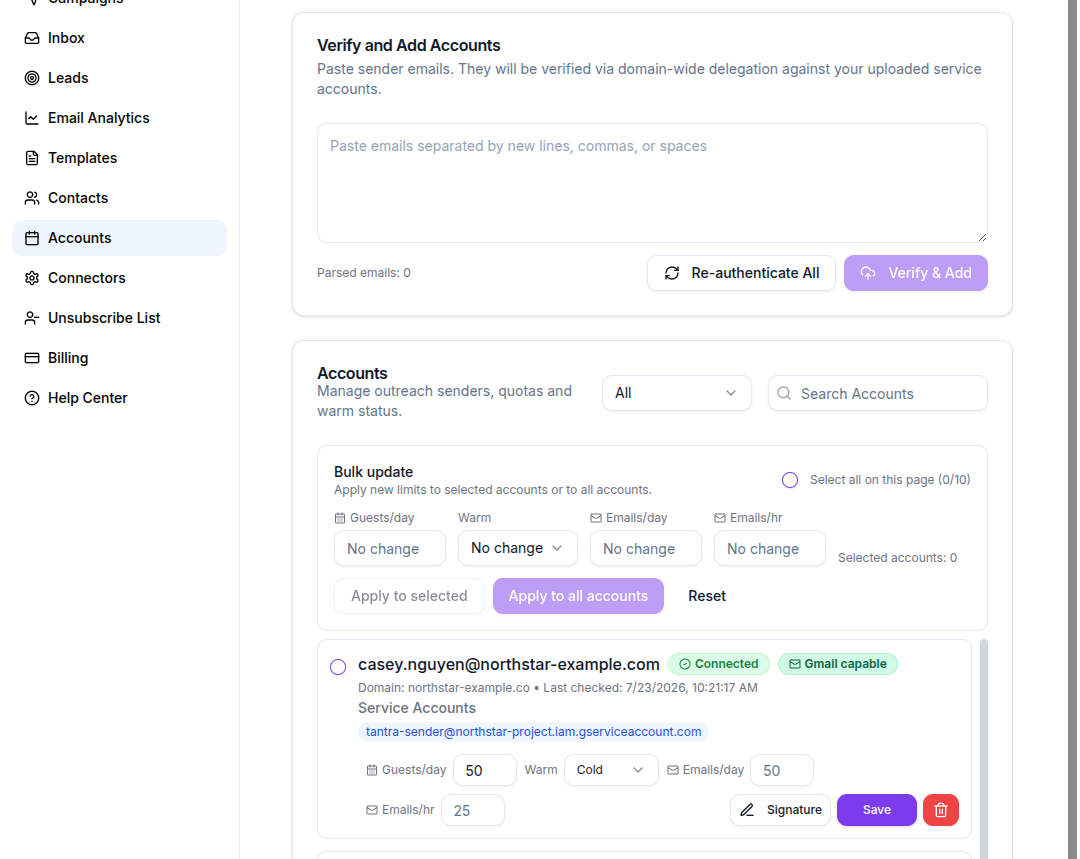
Screens and controls#
- Verify and Add Accounts textarea, labeled
Paste emails separated by new lines, commas, or spaces, with the note that addresses are verified via domain-wide delegation against your uploaded service accounts. - Verify & Add button (disabled until at least one email is parsed) and Re-authenticate All.
- A status filter with All, Connected, and Disconnected, plus a Search Accounts box.
- Each sender card shows a Connected or Disconnected badge, a Gmail capable or Calendar-only badge, the sending domain, when it was last checked, and the matched service accounts.
- Each card also carries that sender's limits: Guests/day for calendar invitations, Warm (Cold or Warmed), and Emails/day and Emails/hr for email. The two email fields are inactive on a calendar-only sender. Signature opens the signature editor and Save stores the limits.
- Bulk update applies Guests/day, Warm, Emails/day, and Emails/hr to the senders you tick, or to every account. Each field defaults to No change, so a blank field leaves that limit alone.
What happens next#
Verification tries each mailbox against your service accounts and records every account that works. The first working account becomes the sender's primary, and the sender's status becomes Connected. Tantra also runs a separate Gmail check and marks the sender Gmail capable or Calendar-only. A sender can be connected for calendar but not Gmail, which is expected if you did not grant the Gmail scopes. See Sender connection states explained.
Best practices#
- Verify in batches by domain so you can spot a domain whose delegation is missing.
- After changing scopes or delegation in Google, use Re-authenticate All to refresh every sender at once.
Common mistakes#
- Adding a mailbox from a domain you have not granted delegation for. It will show as disconnected.
- Expecting Gmail sending on a sender that only has the Calendar scope. Grant the Gmail scopes and re-verify.
Troubleshooting#
| Symptom | Cause | Fix |
|---|---|---|
| A sender shows Disconnected | No uploaded service account can impersonate it, usually a delegation or scope gap | Confirm delegation and scopes in Google, then re-verify. See Reconnect a disconnected sender |
| A sender is Calendar-only | The Gmail scopes are not granted for it | Add gmail.send and gmail.modify, then re-verify |
Verification failed toast | Delegation not propagated, or the API is not enabled | Wait a few minutes, confirm the Gmail and Calendar APIs are enabled, then retry |
FAQ#
How do I paste many mailboxes at once?#
Paste them into the Verify and Add Accounts box separated by new lines, commas, or spaces. Tantra parses and de-duplicates them and shows a count.
What does Gmail capable mean?#
It means the sender can send email through the Gmail API. A Calendar-only sender can still run calendar campaigns but cannot send cold email.
I changed my Google settings. How do I refresh?#
Click Re-authenticate All to re-check every sender against your service accounts.
Why is a sender connected but calendar-only?#
You granted the Calendar scope but not the Gmail scopes for that mailbox. This is expected. Add the Gmail scopes if you want to send email from it.
Related articles#
Was this article helpful?
Related articles
- Sender connection states explainedUnderstand the Connected, Disconnected, Gmail capable, and Calendar-only states Tantra shows for each sender mailbox.
- Reconnect a disconnected senderSteps to bring a disconnected sender back online, from checking delegation and scopes to re-authenticating all senders at once.
- Upload your service account to TantraUpload your service account JSON files to Tantra, tag them, and manage them. Files are encrypted at rest and can be soft-deleted.
- Add email signatures to your sendersCreate a per-mailbox email signature with merge fields, preview it against a sample contact, and control when it is appended to outgoing email.