
Connect and manage LinkedIn
Connect LinkedIn, complete verification, set activity limits, reconnect an account, or remove it from Tantra.
beginner6 min readUpdated
Open in Tantra
These open the app in a new tab. You may be asked to sign in.
Overview#
Connect your own LinkedIn account to visit profiles, send connection requests, and message prospects from Tantra sequences.
LinkedIn is included in every Tantra plan: up to 5 LinkedIn or WhatsApp accounts on Pro and up to 15 on Scale, with additional accounts at $20 per account per month. Your plan must be active before you can connect or reconnect an account. See LinkedIn and WhatsApp accounts on your plan.
Connect with your LinkedIn sign-in#
- Open Connectors.
- Select LinkedIn.
- Select Connect account.
- Keep the Sign in tab selected.
- Enter the email address or phone number and password you use for LinkedIn.
- Under What this account has access to, select the products available on the account: LinkedIn, Sales Navigator, Recruiter, or Company Pages.
- Select Connect LinkedIn.
- Complete any security check shown. You may need to enter a code, approve the sign-in on your phone, or choose an account option.
Your password is used only for this sign-in and is not stored by Tantra.
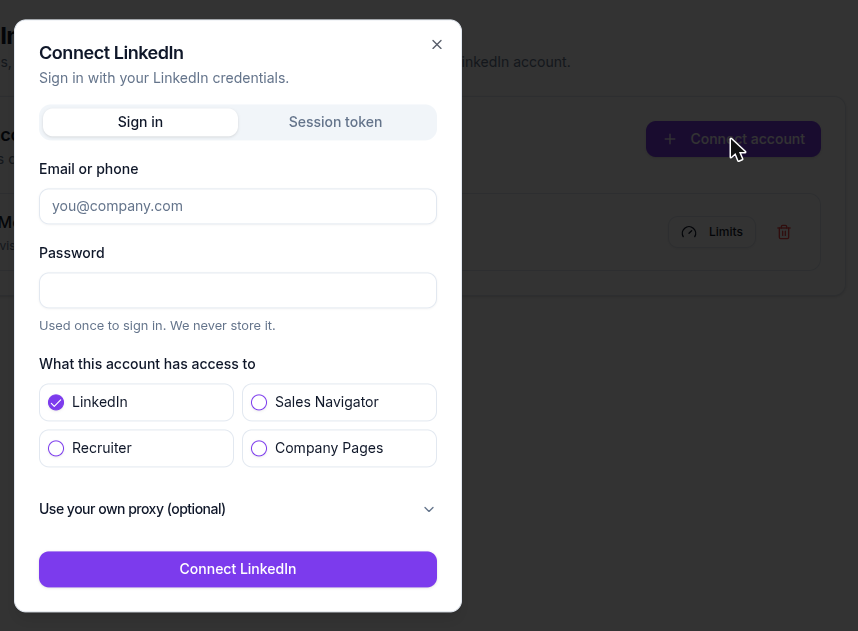
Recruiter and Sales Navigator cannot both be selected for the same connected account. If you use both, connect a second LinkedIn account for the other product.
Use a session token instead#
The Session token tab is an alternative for advanced users, and may be needed for some Recruiter or Sales Navigator accounts.
- Sign in to LinkedIn in the same browser.
- Open the Session token tab in Tantra.
- Paste the requested LinkedIn session token.
- If you selected Recruiter or Sales Navigator, also paste the premium session token.
- Keep the browser user agent matched to the browser from which you copied the tokens.
- Select the products available on the account, then select Connect LinkedIn.
Session tokens are sensitive. Do not share them or place them in team documents. If you do not know how to retrieve one safely, use the regular Sign in method or contact support.
Complete verification#
LinkedIn may ask for an extra check when a new sign-in is detected. Follow the instruction shown in Tantra:
- Enter a verification code sent by email, SMS, or WhatsApp.
- Enter the code from your authenticator app.
- Approve the sign-in notification on your phone.
- Complete the security check.
- Confirm the phone number on the account.
If another delivery method is available, select Send by [method] instead. The Resend code control becomes available after its countdown.
Manage the connected account#
The account row shows its name, identifier, status, product badges, and its tightest activity limit.
| Status | Meaning |
|---|---|
| Connected | The account is ready to use |
| Syncing | Conversation history is importing; sending unlocks automatically when it finishes |
| Disconnected | Select Reconnect and sign in again |
| Reconnecting | Tantra hit a temporary issue and is retrying |
| Paused | LinkedIn access is not active on your plan |
Select Limits to set daily and weekly caps for profile visits, connection requests, and messages. Each field shows the Platform maximum beneath it, along with how much of that allowance the account has used today and this week. You can lower a value to be more cautious, but you cannot go above the maximum. Reset returns one group to its maximum. Select Save limits when finished.
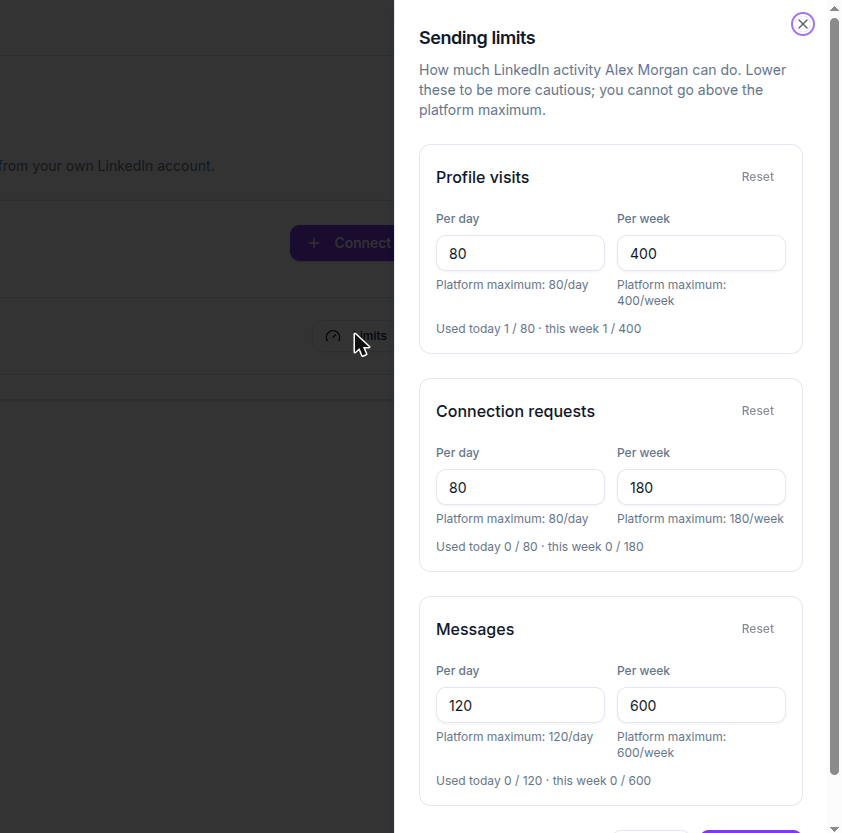
These are the maximums Tantra will not exceed:
| Action | Per day | Per week |
|---|---|---|
| Profile visits | 80 | 400 |
| Connection requests | 80 | 180 |
| Messages | 120 | 600 |
Connection requests are the tightest of the three, and the weekly figure is usually what stops a sequence rather than the daily one. If a LinkedIn step is pacing more slowly than you expect, that weekly allowance is the first thing to check.
Tantra also spaces individual LinkedIn actions apart rather than firing them back to back, so a step reaches its audience gradually even when the caps are set high.
To disconnect the account, select the remove icon and confirm Remove account. Sequence steps that need LinkedIn stop sending until another ready LinkedIn account is selected.
Troubleshooting#
| Symptom | Fix |
|---|---|
| The sign-in is rejected | Confirm the email or phone and password by signing in directly to LinkedIn, then retry |
| Tantra asks for one more step | Complete the required action in LinkedIn first, then start over |
| The account is restricted | Resolve the restriction with LinkedIn before reconnecting |
| Too many attempts | Wait a few minutes before trying again |
| Verification timed out | Select Start over and complete the new prompt promptly |
| The account stays on Syncing | Allow time for conversation history to import; sending unlocks automatically |
| Reconnect is unavailable | Confirm your plan is active under Billing |
Related articles#
Was this article helpful?
Related articles
- LinkedIn and WhatsApp accounts on your planHow many LinkedIn and WhatsApp accounts each Tantra plan includes, how to add more, and where to manage them.
- Build a multichannel outreach sequenceCombine email, LinkedIn, and WhatsApp steps in one Tantra outreach sequence.
- Use the unified inboxRead and filter email, LinkedIn, and WhatsApp conversations in one inbox and view every conversation with the same person.