
Connect and manage WhatsApp
Link WhatsApp by QR code, understand account status, adjust message limits, reconnect, or remove the account.
beginner4 min readUpdated
Open in Tantra
These open the app in a new tab. You may be asked to sign in.
Overview#
Connect your own WhatsApp account to send plain-text messages to phone numbers in your contact records.
WhatsApp is included in every Tantra plan: up to 5 LinkedIn or WhatsApp accounts on Pro and up to 15 on Scale, with additional accounts at $20 per account per month. Your plan must be active before you can connect or reconnect an account. See LinkedIn and WhatsApp accounts on your plan.
Connect WhatsApp#
- Open Connectors.
- Select WhatsApp.
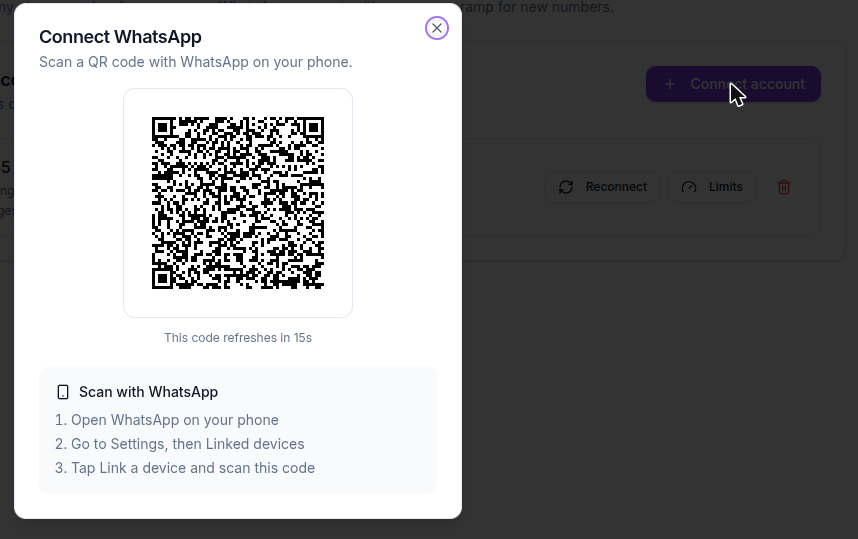
- Select Connect account. A QR code appears.
- Open WhatsApp on your phone.
- Go to Settings, then Linked devices.
- Select Link a device and scan the QR code shown in Tantra.
- Keep the window open while Tantra finishes connecting and imports your conversations.
The QR code is short-lived and refreshes automatically. If the countdown reaches zero, wait for the fresh code and scan that one.
Account statuses#
| Status | Meaning |
|---|---|
| Connected | The account is ready to use |
| Syncing | Conversation history is importing; sending unlocks automatically when it finishes |
| Disconnected | Select Reconnect and scan a new QR code |
| Reconnecting | Tantra hit a temporary issue and is retrying |
| Paused | WhatsApp access is not active on your plan |
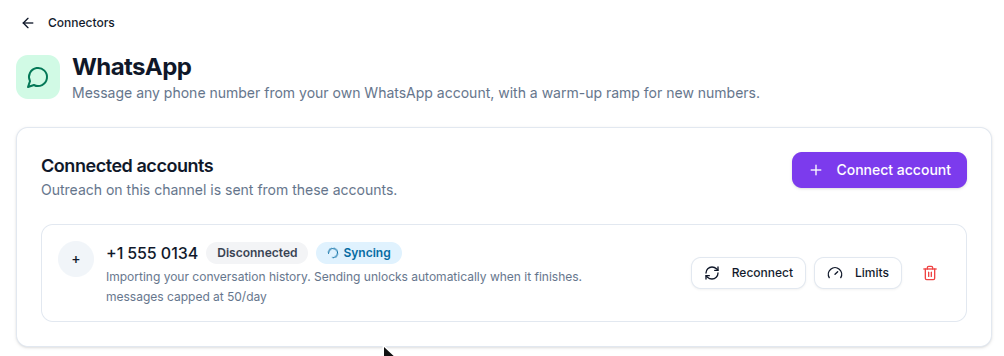
Two badges can appear together. An account that is Disconnected and Syncing is still importing conversation history, and sending unlocks by itself once that finishes. The row also shows the tightest cap in force, such as messages capped at 50/day.
Set message limits#
- Open the WhatsApp connector page.
- Find the account and select Limits.
- Set its daily and weekly message caps.
- Review the usage shown for today and this week.
Each field shows the Platform maximum below it. You can set a lower number to be more cautious, but not a higher one:
| Action | Per day | Per week |
|---|---|---|
| Messages | 50 | 300 |
These are deliberately conservative. A new number that sends to many people it has never messaged before is the most likely to be blocked, so start well below the maximum and raise it slowly. 5. Select Save limits.
You can lower a limit to be more cautious. You cannot enter a value above the maximum shown for the account.
Reconnect or remove an account#
- If the account is Disconnected, select Reconnect and scan the new QR code from WhatsApp.
- To disconnect it permanently, select the remove icon and confirm Remove account.
Removing the account does not rewrite existing campaigns. WhatsApp steps stop sending until another connected WhatsApp account is selected.
Contact requirements#
A WhatsApp message step needs a usable phone number on the contact record. Review your audience before launch and make sure phone numbers include the country code.
Troubleshooting#
| Symptom | Fix |
|---|---|
| The QR code expired | Wait for it to refresh automatically, then scan the new code |
| The phone does not recognize the QR code | Confirm you opened Linked devices and chose Link a device in WhatsApp |
| The connection timed out | Close the window, select Connect account, and scan promptly |
| The account remains on Syncing | Leave it connected while its conversation history imports |
| Reconnect is unavailable | Confirm your plan is active under Billing |
| A campaign cannot launch | Select a ready WhatsApp account in the campaign's Senders step |
Related articles#
Was this article helpful?
Related articles
- LinkedIn and WhatsApp accounts on your planHow many LinkedIn and WhatsApp accounts each Tantra plan includes, how to add more, and where to manage them.
- Build a multichannel outreach sequenceCombine email, LinkedIn, and WhatsApp steps in one Tantra outreach sequence.
- Use the unified inboxRead and filter email, LinkedIn, and WhatsApp conversations in one inbox and view every conversation with the same person.