
AI personalization for email and calendar
Tantra rewrites your email and calendar copy per recipient using their website. Turn it on per step or campaign, with template fallback.
intermediate6 min readUpdated
Open in Tantra
These open the app in a new tab. You may be asked to sign in.
Overview#
AI personalization rewrites your copy for each recipient using a text snapshot of that recipient's public website. Instead of one template that every prospect receives word for word, each person gets copy that references their own business. This article explains what personalization produces for each engine, how to turn it on, and what happens when it cannot run.
Personalization is opt-in. It is off unless you enable it, and it always has a template to fall back to.
How it works#
When personalization is enabled, Tantra fetches a text snapshot of the recipient's public website, then sends that snapshot and your template to an AI model. The model rewrites your copy so it fits that prospect while keeping your structure and any merge fields. See How website scraping feeds personalization for how the snapshot is gathered.
If your default provider is a ChatGPT or Claude sign-in, the model reads the recipient's website itself instead of receiving a snapshot. Switch on Use external crawler (Beta) on the LLM Providers page if you want Tantra's snapshot used for those providers too.
The two engines produce different output.
Cold email produces a personalized subject line and a personalized HTML body. Tantra asks the model for both in a single step, so the subject and the body are built on the same detail from the website. If the reply does not come back in the expected format, Tantra retries with a separate subject step and body step. Your merge fields are preserved exactly. The result is one tailored email for that recipient.
Calendar campaigns produce a personalized plain-text invitation description. Tantra runs a single step that rewrites the invite description, keeping your headings, bullet points, links, dates, and time zones, and adding a reference to the prospect's business where one genuinely fits.
Personalization uses the LLM provider you set as your default. See Connect your own LLM provider. If no provider is available, the message falls back to your template.
When personalization falls back to the template#
Personalization is designed to never block a send. Tantra uses your plain template instead when any of these is true.
- Personalization is turned off for that step or campaign.
- The recipient uses a personal webmail address, such as Gmail or Yahoo, so there is no business website to read.
- No website can be found or the website snapshot fails.
- No default LLM provider is available.
- The AI call fails after its retry.
In every one of these cases the recipient still receives your template copy, with merge fields and spintax resolved as usual.
Before you start#
- Have a template written for the step or campaign. It is both your starting point and your fallback.
- Connect an LLM provider and set it as your default if you want to control the model and prompt. See Connect your own LLM provider.
- Understand that personalization only helps for contacts with a business website or business email domain.
Step-by-step: personalize a cold email step#
- Open the cold email campaign builder and go to the sequence step.
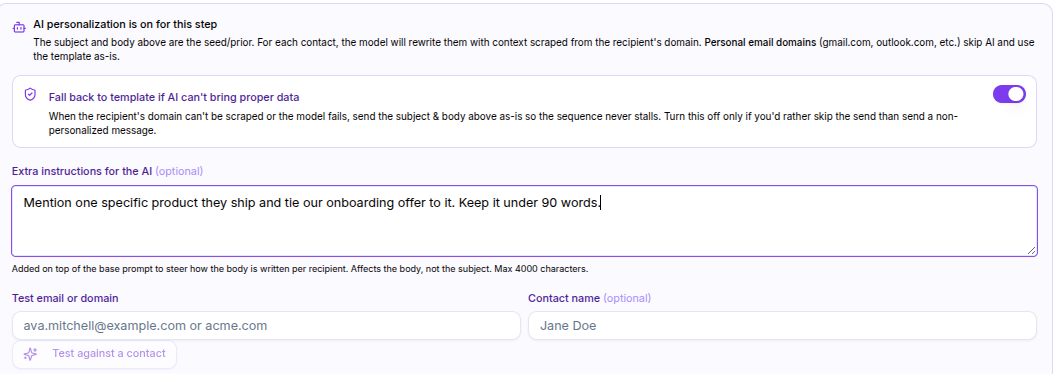
- Switch the step mode from Predefined template to AI-personalized.
- Write the template subject and body. The AI keeps this structure and your merge fields.
- Optionally open the AI panel to keep or change the template fallback and to add a prompt override for extra guidance.
- Use Test against a contact to preview the personalized subject and body for a real contact before you launch.
Step-by-step: personalize a calendar campaign#
- Open the smart calendar campaign builder.
- Enable personalized events and keep AI personalization on for the campaign.
- Provide the invitation template. The AI keeps its structure and rewrites the copy per recipient.
- Launch. Tantra scrapes and personalizes as it processes the campaign.
Screens and controls#
- Cold email step: a mode toggle between Predefined template and AI-personalized, an AI panel with a fallback toggle and a prompt override, and Test against a contact.
- Smart calendar builder: options to use personalized events and AI personalization for the campaign.
- LLM Providers page: choose the default provider used for all personalization.
What happens next#
Personalization runs when Tantra prepares each message, not while you edit. It is asynchronous.
For cold email, Tantra personalizes a recipient's step shortly before that step is due to send. For calendar campaigns, it personalizes as the campaign processes its batches. Because a model is called per recipient, this takes time and happens in the background.
You do not watch personalized copy render live in the app. To see output before launch, use Test against a contact on an AI email step, or the Test settings preview on your provider page. See Connect your own LLM provider.
Choosing a model: our test results#
On 2026-09-23 we ran every ChatGPT and Claude model offered to our test account on the LLM Providers page through the same personalization step a real cold email send uses. Each model had to rewrite one B2B product-demo email for a single prospect, a large electronics distributor, by reading that company's public website itself. The email template contained an opener placeholder and two bracketed option lists for the model to fill in. The model also received a detailed custom system prompt of about 6,300 characters and about 3,900 characters of extra instructions. Each model ran 3 or 4 times.
A run met every rule when all of these were true:
- It returned an email in the requested one-call format.
- It kept the offer, the customer names and the single closing question.
- It left no bracketed placeholder and none of its own drafting notes in the body.
- It stayed at or under 120 words, the limit set in the system prompt.
- It used no dash and no word from the system prompt's banned list.
Which models appear in your own list depends on your ChatGPT or Claude plan. Models are ranked within each provider by the share of runs that met every rule, then by median time. Median time covers every run. The token and word medians cover only the runs that returned an email, because a run that returned nothing leaves no token record. Tokens read includes the website content and the prompt. Tokens written includes the model's own reasoning. With a ChatGPT or Claude sign-in, both count against your plan's usage limits, not a per-token bill.
ChatGPT sign-in#
| Rank | Model | Runs | Emails returned | Met every rule | Median time | Median tokens read | Median tokens written | Median words | Notes |
|---|---|---|---|---|---|---|---|---|---|
| 1 | gpt-6-luna | 4 | 4 | 3 of 4 | 6 s | 13,788 | 202 | 107 | 1 run over 120 words |
| 2 | gpt-6-sol | 4 | 4 | 3 of 4 | 14 s | 28,968 | 358 | 106 | 1 run left a bracketed placeholder in the body; 1 run over 120 words |
| 3 | gpt-5.6-luna | 3 | 3 | 2 of 3 | 11 s | 19,525 | 437 | 111 | 1 run over 120 words |
| 4 | gpt-6-astra | 3 | 3 | 2 of 3 | 14 s | 19,330 | 232 | 93 | 1 run missed the one-call format and needed 3 calls |
| 5 | gpt-5.6-sol | 3 | 3 | 2 of 3 | 29 s | 37,464 | 667 | 101 | 1 run left a bracketed placeholder in the body |
| 6 | gpt-5.5 | 3 | 3 | 1 of 3 | 12 s | 15,279 | 510 | 133 | 1 run left a bracketed placeholder in the body; 2 runs over 120 words |
| 7 | gpt-5.6-terra | 3 | 3 | 0 of 3 | 12 s | 16,948 | 486 | 123 | 3 runs over 120 words |
Claude sign-in#
| Rank | Model | Runs | Emails returned | Met every rule | Median time | Median tokens read | Median tokens written | Median words | Notes |
|---|---|---|---|---|---|---|---|---|---|
| 1 | Claude Opus 5.5 | 3 | 3 | 3 of 3 | 22 s | 29,185 | 2,086 | 105 | None |
| 2 | Claude Opus 4.5 | 3 | 3 | 3 of 3 | 28 s | 21,782 | 1,043 | 112 | None |
| 3 | Claude Opus 5 | 3 | 3 | 2 of 3 | 24 s | 35,634 | 2,130 | 117 | 1 run over 120 words |
| 4 | Claude Opus 4.7 | 3 | 3 | 2 of 3 | 28 s | 29,984 | 1,885 | 114 | 1 run over 120 words |
| 5 | Claude Opus 4.6 | 3 | 3 | 2 of 3 | 30 s | 47,000 | 822 | 115 | 1 run put the model's drafting notes in the body |
| 6 | Claude Fable 5.1 | 3 | 2 | 1 of 3 | 39 s | 63,586 | 2,869 | 123 | 1 run returned no email; 1 run over 120 words |
| 7 | Claude Fable 5 | 3 | 1 | 1 of 3 | 40 s | 29,174 | 2,901 | 119 | 2 runs returned no email |
| 8 | Claude Opus 4.8 | 3 | 2 | 1 of 3 | 41 s | 29,157 | 2,008 | 118 | 1 run returned no email; 1 run over 120 words |
| 9 | Claude Haiku 4.5 | 3 | 3 | 0 of 3 | 22 s | 21,871 | 1,495 | 143 | 3 runs returned the template unchanged, placeholders included |
| 10 | Claude Sonnet 4.5 | 3 | 3 | 0 of 3 | 33 s | 21,863 | 1,027 | 143 | 3 runs returned the template unchanged, placeholders included |
| 11 | Claude Sonnet 5 | 3 | 0 | 0 of 3 | 40 s | Not recorded | Not recorded | No email | 3 runs returned no email |
| 12 | Claude Sonnet 4.6 | 3 | 0 | 0 of 3 | 59 s | Not recorded | Not recorded | No email | 3 runs returned no email |
What the results mean#
- gpt-6-luna carries the Recommended Priority 1 badge for ChatGPT. It met every rule as often as any GPT-6 model while using the fewest tokens and the least time, so your plan's usage lasts longest. gpt-6-sol carries Priority 2. It named specific products more often, but it read about twice as many tokens.
- Claude Opus 5.5 carries the Recommended Priority 1 badge for Claude, and Claude Opus 4.5 carries Priority 2. They were the only Claude models that met every rule in all three runs.
- Runs that returned no email. In the Claude Sonnet 5 run we traced, the model used up Tantra's reply length limit on its own reasoning before writing the email. That run still used about 64,000 tokens of plan usage. The other empty replies returned the same error. A campaign send treats this as temporary and retries, then falls back to your template, so each retry uses plan usage again.
- Claude Haiku 4.5 and Claude Sonnet 4.5 returned the template unchanged in every run. The system prompt tells the model to keep the placeholder when it finds no usable detail, and these two models took that path each time.
- Bracketed option lists are risky in a template. When a model keeps one, it can reach the recipient as written. Tell the model in your system prompt to replace every bracketed list with a single option, or leave option lists out of the template.
These results come from one prospect, one template and one prompt. Another website or prompt can rank the models differently, so preview your own template with Test against a contact before you launch.
Best practices#
- Write a strong template first. The AI improves a good template far more than it rescues a weak one.
- Keep merge fields in the template. The AI is instructed to preserve them.
- Use the prompt override on a cold email step to steer tone or add a specific angle.
- Preview with a test contact before launching so you know what recipients will get.
- Leave template fallback enabled so contacts without a usable website still receive your copy.
- Start with a model that carries a Recommended badge. See Choosing a model: our test results.
Common mistakes#
- Expecting personalization for contacts on personal webmail. Those fall back to the template by design.
- Assuming personalization runs without a default provider. Without one, messages use the template.
- Removing merge fields and relying on the AI to add names. Keep the fields so values are always filled.
- Not previewing before launch, then being surprised by the tone.
Troubleshooting#
| Symptom | Cause | Fix |
|---|---|---|
| Some recipients got the plain template | They had no business website, or the snapshot or AI call failed | This is the intended fallback. Add website data for those contacts if you want them personalized |
| No recipients are personalized | Personalization is off, or no default provider is available | Turn the step or campaign on and set a default provider |
| Preview or send shows generic copy | The website snapshot had no useful company information | The AI avoids inventing facts. Add a better website or accept the template copy |
| A merge field is missing after personalization | Rare, if the field was not in the template | Keep merge fields in the template so they are preserved |
FAQ#
What does personalization produce for email versus calendar?#
Cold email gets a personalized subject and HTML body. Calendar campaigns get a personalized plain-text invitation description.
Is personalization on by default?#
No. You enable it per cold email step or per calendar campaign.
What happens if a contact has no website?#
Tantra falls back to your template. Personal webmail contacts always fall back, since there is no business site to read.
Do I need my own AI provider?#
Yes. Every AI feature runs on your default LLM provider: campaign personalization, reply classification, and the template editor's generate and enhance buttons. Without one, campaigns fall back to your template.
Can I see the personalized copy before sending?#
Yes. Use Test against a contact on an AI email step, or Test settings on your provider page.
Will the AI invent facts about a prospect?#
It is instructed not to. When the website has no useful information, it keeps your template copy instead of guessing.
The wording the model follows comes from the shared System Prompts panel, which has a separate prompt for calendar invitations and for cold email. See Connect your own LLM provider.
Related articles#
Was this article helpful?
Related articles
- How website scraping feeds personalizationTantra reads a text snapshot of each contact's public website to personalize outreach. See how targets are chosen and when it is skipped.
- Connect your own LLM providerBring your own Cerebras, OpenRouter, or Novita key to Tantra, test the connection, pick a model, and set the default used for AI personalization.
- Personalize your calendar invitations with AIPersonalize each calendar invitation with merge tags and optional AI. Learn how Tantra tailors the invite from each prospect's website.